This guide explains how to use the Export and Import features in your Fox LMS to move, back up, or restore your content with ease. Whether you’re migrating to a new website, creating a backup, or reusing courses across multiple sites, the export and import tools help you manage your data quickly and safely. Now, let’s see what actions you must take to easily export/import your courses.
How to Import Courses #
To import your already created courses from your WordPress website, navigate to the Import/Export submenu within the Fox LMS plugin. From the available tabs, select Import to proceed.
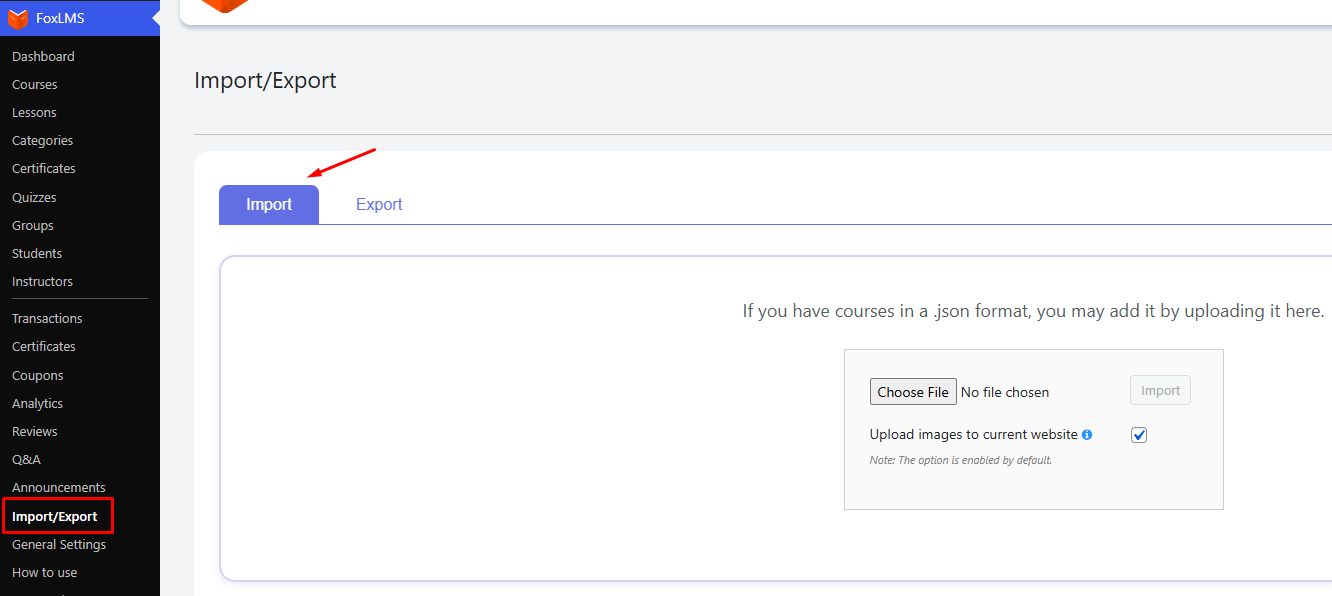
To import your course data, click the Choose File button and select the relevant JSON file from your device. Once the file is selected, the Import button will become active.
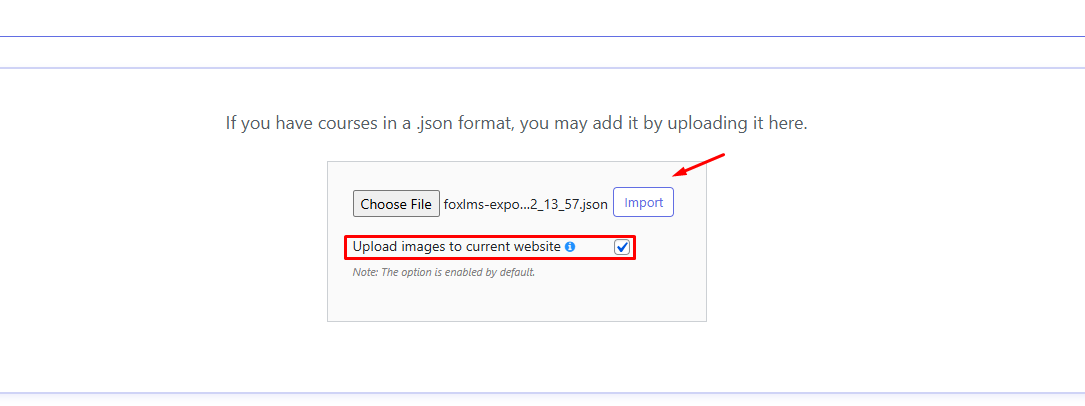
If you would like to upload the course images to the current website, make sure the corresponding option is selected (this option is enabled by default).
Finally, click the Import button to complete the process.
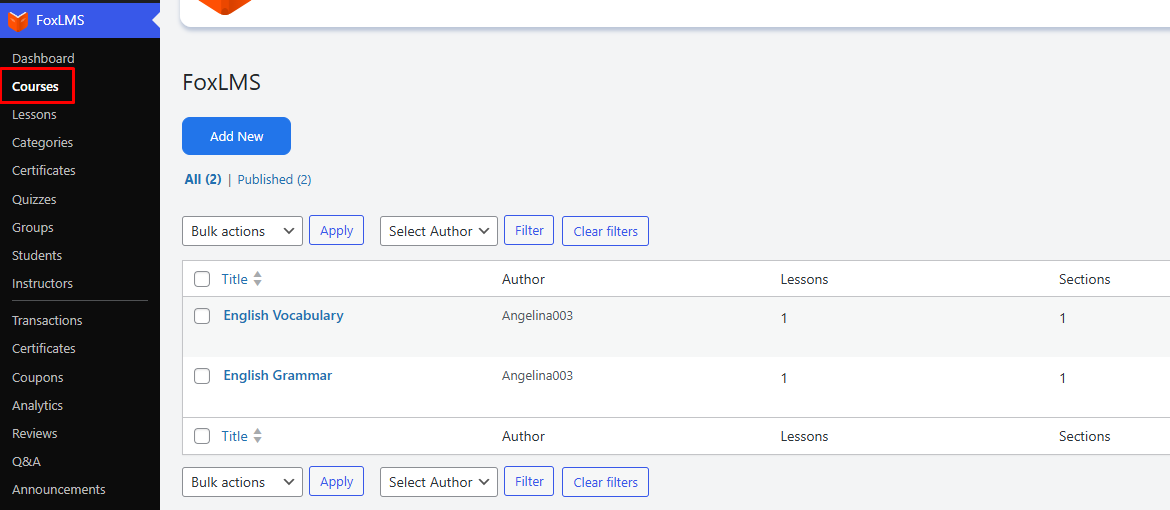
That’s it. Your courses have now been successfully imported into your current website. To view them, navigate to the Courses submenu.
Below you can see an example of a JSON file that can be imported.
How to Export Courses #
Along with the import functionality, Fox LMS provides the option to export courses from your current website.
To export your courses, first navigate to the Export tab within the Fox LMS plugin. This section allows you to easily create a backup of your course content or transfer it to another WordPress website. The export process is simple and requires minimal steps.
Once you are on the Export tab, click the Download Export File button.
The system will generate a JSON file containing all your course data, which you can save to your device and use for future imports.
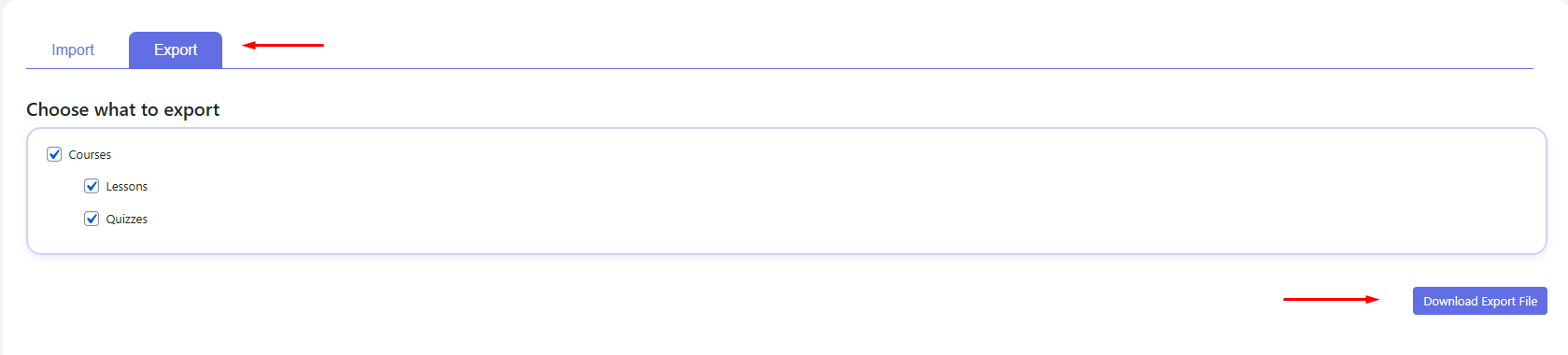
During export, you have the option to choose whether the course should include its lessons and quizzes or just remain as a course with sections. Fox LMS allows you to export courses along with their sections and settings. This means you can export a course independently, without including lessons or quizzes, if you prefer.
When importing the course, you can then add the desired lessons to it, giving you full control over the content structure.
For quizzes, if the website, where you are planning to import the course, already has Quiz Maker installed, the exported quizzes will be automatically transferred and integrated. If Quiz Maker is not installed the quizzes will not appear.
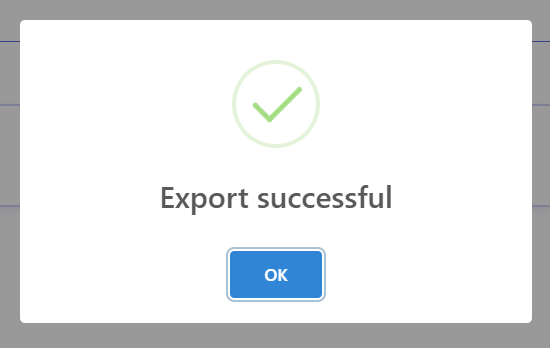
Once the export process is completed successfully, a confirmation message will appear on your screen.
That’s it. Your courses have been successfully exported, and the resulting file is now ready to be imported into another website or securely stored on your device for future use.


