To make the process of creating content for lessons easier, FoxLMS offers an AI Content Generator powered by OpenAI. The AI Generator helps you quickly generate lesson outlines right in your LMS. Powered by OpenAI, this feature can generate text suggestions based on the prompts you provide, helping you draft lessons faster. In this guide, we will cover how you can make use of the AI Content Generator.
Download the Addon #
The AI Content Generator is available as an addon. So, first of all, you will need to activate the addon. In case of getting the Pro Version of the FoxLMS plugin, you will receive the addon. Go to your account and then download the zip file from there. Then, activate the addon by going to the Plugins submenu > Add New plugin > Install the Zip file > Activate
How to Activate the AI Content Generator #
After successfully activating the addon, you will need to go to the Fox LMS plugin > General Settings submenu > Integrations
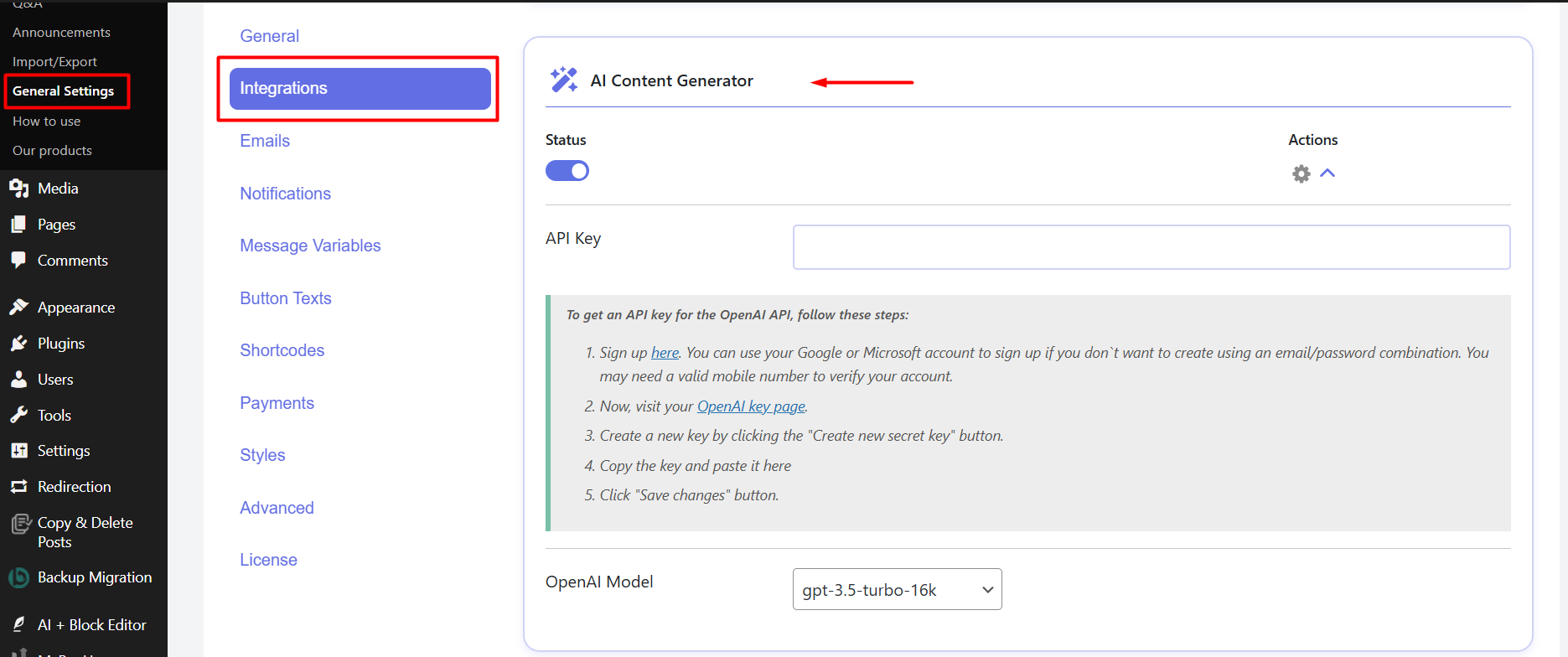
For the next step, make sure to sign up to your Open.AI account and create an API Key. You will find the instructions right in the dashboard (see the screenshot above).
Now, for the final step, you will need to add the created API Key in the appropriate field, choose the convenient OpenAI Model and click on the Save Changes button.
How to Use the AI Content Generator #
The AI Content Generator Addon is an ideal tool for creating your lessons. To use the AI Content Generator, you will need to go to the Lessons submenu > create a new lesson or make use of the existing ones. In the right corner, you will see the icon of the AI Content Generator addon. By clicking on it, you will see all the available features of the addon.
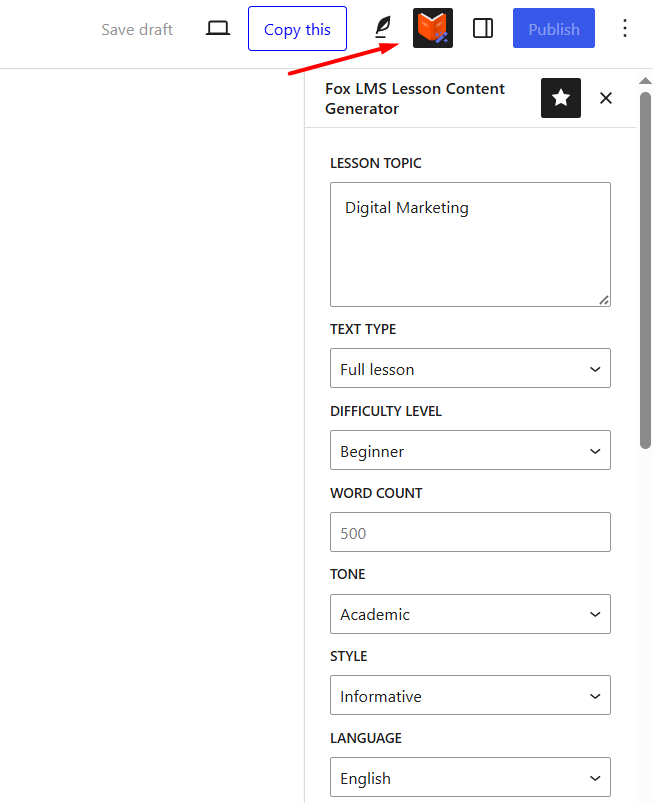
All you need to do is write the lesson title, choose the lesson topic, set the needed features, and click on the Generate button.
All Available Features #
- Lesson Topic – Defines the main subject or concept the lesson will cover.
- Text type – Specifies the structure of the generated content.
- Full lesson – generates a complete lesson with explanations and examples.
- Outline – creates a structured lesson plan or framework.
- Lesson notes – produces short, summarized learning notes.
- Difficulty level – Determines how simple or advanced the lesson content should be (beginner, intermediate, or advanced).
- Word Count – Sets the approximate length of the generated lesson.
- Tone – Controls how the lesson sounds to the reader.
- Academic – formal and educational
- Conversational – friendly and easy to read
- Story-telling – narrative and engaging
- Business-like – professional and direct
- Style – Defines the writing style and presentation approach of the lesson content.
- Language – Specifies the language in which the lesson will be generated.
- Headings count – Sets how many sections or headings the lesson should include.
- Headings tag – Defines the heading format (for example, H2, H3, etc.).
- Keywords – Words or phrases that should be included in the lesson content.
Besides the above-mentioned features, you will be able to set up the following options as well.
- Temperature– Controls how creative or predictable the generated text will be.
- Top P – Determines how diverse the word selection can be by limiting choices to the most likely options.
- Maximum tokens – Sets the maximum length of the generated response. Higher values allow longer content.
- Frequency penalty– Reduces repetition by discouraging the model from using the same words or phrases too often.
- Presence penalty– Encourages the model to introduce new ideas or vocabulary instead of repeating existing ones.
- Best of – Generates multiple versions of the response internally and returns the highest-quality result.
By following all the mentioned steps, you will be able to get your lesson content within minutes. Generating content from scratch is easier with the AI Content Generator addon for the Fox LMS plugin.


